Showing posts with label malware. Show all posts
Showing posts with label malware. Show all posts
Sunday, 17 November 2013


Sunday, 25 August 2013
What is vGrabber and how do I get rid of it?

What is it? vGrabber is best described as a browser hijacker and/or malware (malicious software)
How is it spread? It's typically promoted via browser pop-ups which entice the viewer to install it. It's also known to be piggy-back installed along with other free software.
What happens if it gets installed on my machine? Once installed it will most likely do the following: add the vGrabber Toolbar to your browser, change your browser's homepage and default search engine to search.conduit.com. Furthermore you’ll notice the appearance of random pop-up adverts and you'll be spontaneously redirected to a whole bunch of rather unsavoury websites featuring misleading content. Some of what you see will be fairly standard, some of it will be adult oriented. There'll also be more invitations to install apps that are likely to contain more malware. So, understandably, vGrabber is not something to ignore or to think of as harmless.
So lets look at how to get rid of vGrabber...
 1. Uninstall the vGrabber toolbar and, if there, any of the other items you see in this screenshot using Control Panel -> Add/Remove Programs (Windows XP) or Control Panel -> Uninstall a program (Windows Vista, Windows 7 and Windows 8).
2. The vGrabber toolbar can be uninstalled like any other browser add-on or extension. The uninstall process differs slightly depending on which browser you are using. I've provided the steps for the most commonly used browsers as follows...
Internet Explorer
Click the Start menu.
Select Control Panel.
Click Uninstall a program under Programs. (Or click Programs and Features.)
Right-click the relevant toolbar and select Uninstall.
Firefox
Click the Firefox button (or Tools menu) at the top of the browser window.
Select Add-ons.
Select Extensions.
Click the Disable or Remove button for the relevant toolbar.
Chrome
Click the Chrome menu  (or wrench icon) at the top of the browser window.
Select Settings.
Select Extensions.
Find the vGrabber and/or search conduit toolbar and click the Remove button .
.
(or wrench icon) at the top of the browser window.Select Settings.
Select Extensions.
Find the vGrabber and/or search conduit toolbar and click the Remove button
.3. Use a malware removal tool to perform scan of your pc. Malwarebytes antimalware and Hitman Pro are both good for carrying out this task. I've also just tried Junkware Removal Tool which, based on my own testing, also seems to be effective at clearing vGrabber as well as a bunch of other similar junk from an infected pc.
That should do the trick. But let me know if you've followed these steps and haven't been able to get rid of vGrabber. I'll be interested to know in case I need to update these instructions.
Thursday, 18 July 2013
Make sure your computer's keeping its cool
 |
| Laptop keeping its cool? |
I've seen heat and fan noise issues affecting several of my clients now and thought it'd be helpful to share my thoughts and some recommendations on this topic of laptop/desktop cooling problems, the most common causes and what can be done about them.
Excess heat's much more prevalent with laptops because, by their very nature, they've got a lot of components packed tightly into a relatively small enclosure and consequently, heat dissipation is a bigger challenge. However under normal circumstances that heat dissipates effectively enough to maintain a 'healthy' internal ambient temperature. With desktop computers there's typically a lot more space within the outer casing for a larger volume of air to flow around and keep things cool. So heat build-up isn't normally such an issue. That said, desktops do still need to be attended to. So read on.
There are a couple of factors which will directly impact the normal cooling process; I see and deal with both quite frequently. The first is a physical issue and is the build-up of a layer of household dust and fluff within the computer's cooling/ventilation system. In most computers there's an active cooling system which is driven by a small, thermostatically controlled fan. i.e. the fan only spins up when the internal temperature rises above a pre-determined threshold, prompting a need for more cooling. It's also possible that the fan has a variable speed which increases when further higher heat thresholds are reached/exceeded. You're most likely aware of this fan from both the noise it generates and the plume of warm exhaust air it pushes out across the desk when running at full speed.
The next factor typically arises if you're hosting a lot of software or apps on your computer. By having lots of apps running in the background you're giving the computer's CPU a heavy workload to manage before you even start to browse the web or type that email. Malware is another possible and most unwelcome contributor to your computer's background workload. This heavy workload, in turn, results in the CPU generating more heat which results in a need for more cooling, hence the cooling system is more frequently called upon to keep the temperature down.
So if your computer's internal fan is constantly on and its drone is apparent it's possible that one or more of the above factors is contributing to that situation. The question is: what can be done to address that?
 |
| Air vents on the underside of a laptop should, ideally, be clean and free of dust and fluff as above. |
For the dust/fluff build-up aspect, with the computer powered off, just take a look at the inlet/outlet vents around your computer's casing to see if there's any sign of an accumulation of dust hindering air flow. Any that's there can normally be cleared using a clean paint brush. For a desktop computer that's tucked away under a table or desk it's worth making the effort to pull it out to gain access to the back. That's normally where the main cooling fan is located and there's probably a vent or perforated section to the case where the fan draws in or blows out air. Just check that the vents are not blocked or obstructed by dust or anything else. Clean any accumulated dust off with a paint brush. For a more serious build-up of dust it may be appropriate to disassemble the computer to enable a more complete and thorough clean. But caution is needed if going there. If unsure seek help from a trained technician.
For the malware aspect, it makes perfect sense to have good internet security software that's actively scanning for and preventing infections at all times. For those who are happy to go with the subscription-free option I'd say Avast Free is probably the best one currently available. For the subscription based products Kaspersky Internet Security is generally highly regarded for its very good detection rate.
 |
| In Windows 8 the Control Panel entry (highlighted in yellow) to access and remove apps looks like this. |
Wednesday, 24 April 2013
A scam email I received earlier today
I had the following email - minus the black blobs - waiting for me when I checked in earlier this morning.

It was from a friend, had no malicious attachments, and so hadn't been consigned to trash or the spam folder.
The content wasn't what I'd expect from that friend so that helped to confirm that it wasn't an email they'd consciously sent me. I made contact and, sure enough, they were fully unaware of the fact that the message had been sent from their personal email account to multiple recipients from their address book.
The implications of this are that the email account had been hacked and/or their computer (an Apple Mac) was infected with some virus or trojan. My advice was to assume the worst; both to be correct and act accordingly. I also advised them to contact everyone who will have received a copy of the email advising them of the situation and to delete the email without reading since the link it contains will, no doubt, be a fast-track to further woes.
For the email account the quick fix is an immediate change of password, preferably using a strong one which at least meets their service provider's recommendations.
Their response, when I suggested the possibility of a virus infection on the Mac, was surprising. They'd been led to believe that "Mac's don't get virus infections" which, apparently, came from the sales assistant. I set them straight on that piece of misinformation and advised they assume the worst and get it checked out even if it is unlikely to be the case. I think they're planning a return visit to the shop within the next few days and will, I suspect, provide some relevant customer feedback.
Intego, Kaspersky and Symantec all offer highly rated security solutions designed to keep your Mac as clean and pure inside as it looks outside. Intego's VirusBarrier 6 offers protection for 2 Macs about £70, Kaspersky's One product will run you about £25 and the Symantec product is about £30 for 2 Macs. All three offer comprehensive anti-malware protection.
If these are too pricey, Sophos and ClamXav are available for free. If you're new to anti-virus software (and most Mac users are) you might want to try a free option to learn more about what's available to you.
Sunday, 24 March 2013
If it seems too good to be true...
As the old saying goes, “if it sounds too good to be true, then it usually is.” Nowhere are these words of wisdom more applicable than on Facebook!
Very few words can capture one’s attention more than the word ‘FREE.’ You would think that the constant use and overuse by marketers worldwide would eventually wear the word out, but it's not the case. Just seeing the word on a page, in an online advertisement, or hearing it on the television or the radio is enough to grab the average person's attention.
 Facebook scammers and spammers have enjoyed great success with the lure of false promises. At any given moment, you don’t have to look very hard to find Free iPads, iPhones, Computers, etc. -Including iPad Giveway and other ‘Giveaway’ Pages. The pics I've posted here are examples of a couple of these I've seen over the past day alone.
 The whole premise that a new Iphone or Ipad can't be sold and has to be given away because the factory seal on the packaging has been broken is, frankly, unbelievable given the high value and desirability of these items.
The Apple name and logo have been used in the title of the Facebook page to make the offer appear legitimate and, perhaps, associated with Apple Inc. However take a look under the surface at the About info for any of these pages and you'll see there's little or no detail of who's behind the offers, and it's certainly not Apple Inc.
99% of the time, the end game encountered by unsuspecting users is either a survey scam or a marketing gimmick where you have to complete several ‘special’, ‘reward’ or ‘bonus’ offers to qualify for the promotion. These offers often cost real money, and we have yet to hear of a case where the participant actually received anything after jumping through all of the hoops.
I clicked on the links in the above pages just to test my theory which took me through to a web site where, before I could even see specific details of the offer, I was challenged to provide my name, email address and "any other relevant information" whatever that might be. So anyone clicking through just to check the details of the free offer doesn't even get the option to choose whether or not to subscribe. Seems like a very hard sell to me which, if the offer was genuine and above board, really wouldn't be necessary.
So my advice to you here is: avoid these like the plague!
Finally... I'm big enough to admit my mistakes. So if I'm wrong about any of these Facebook Ipad/Iphone giveaway offers I'll happily eat humble pie in this blog. However I'll need to see hard evidence from someone I know and trust to convince me.
Saturday, 16 February 2013
How to check that a web site is safe to visit
Links to web sites present themselves to us in a myriad different ways. That link in a Facebook post that'll show us a funny video; an email from an acquaintance containing a link to an amazing special offer; a message posted in a newsgroup or forum containing a link to a valuable piece of information; the list is endless. Most of the time these links do exactly what is expected. However there are folks out there hoping to trick us into visiting some web page or launch a piece of code that'll attempt to perform some unexpected and probably harmful action. But, hey, I've got internet security software so I'm protected against this kind of thing, right? Not necessarily. It's not guaranteed that your internet security app, even when fully up-to-date, will 'know' about that new piece of malware and, therefore, may not be able to block it. So the best advice is if you really want to proceed then do so with caution. Thankfully there are some resources out there that'll help. Here are a couple of sites the purpose of which is to check the safety of a web site when given the site's address.
 McAfee's Site Advisor - It's not necessary to install the free download in order to use this resource. Instead I suggest you go ahead and enter the site's URL into the text box in the right sidebar under the heading of View a Site Report (see image on right) and you'll see either a green (safe) or red (unsafe) at the beginning of the report. If you're interested to know more SiteAdvisor goes on to provide a lot more detail.
Norton’s SafeWeb (see screenshot below) works in a similar way to the McAfee site. When displaying a site’s threat report it contains user community input in the form of reviews and ratings in the right sidebar. The actual Norton review starts with the green (safe), orange (caution advised), red (unsafe) or grey (unknown) icon, followed by the threat report, that includes the results of 17 different malware tests. For certain sites, Norton’s SafeWeb also reports information of e-commerce safety (whether the site encrypts transactions and has a privacy policy).

In summary it makes perfect sense to use one or other of these sites to check out a web site if you're at all unsure about its safety.
 McAfee's Site Advisor - It's not necessary to install the free download in order to use this resource. Instead I suggest you go ahead and enter the site's URL into the text box in the right sidebar under the heading of View a Site Report (see image on right) and you'll see either a green (safe) or red (unsafe) at the beginning of the report. If you're interested to know more SiteAdvisor goes on to provide a lot more detail.
Norton’s SafeWeb (see screenshot below) works in a similar way to the McAfee site. When displaying a site’s threat report it contains user community input in the form of reviews and ratings in the right sidebar. The actual Norton review starts with the green (safe), orange (caution advised), red (unsafe) or grey (unknown) icon, followed by the threat report, that includes the results of 17 different malware tests. For certain sites, Norton’s SafeWeb also reports information of e-commerce safety (whether the site encrypts transactions and has a privacy policy).

In summary it makes perfect sense to use one or other of these sites to check out a web site if you're at all unsure about its safety.
Wednesday, 30 January 2013
Old school fraud masquerading as something official

If you're here looking for a solution to the Your Computer Has Been Locked banner screen then this article should give some general pointers and info. Please comment if you have something constructive to add or found this article to be helpful.
This is a new twist in the type of malware infection that’s on the loose at the moment. Everything about this rogue app is designed to intimidate its unsuspecting victims (there have been many) into believing that there’s something official about the basis for his or her pc being locked. However it’s nothing more than theft, fraud, crime or whatever seems most appropriate to describe this kind of low-life activity.
In this example the computer has been well and truly hijacked and with no apparent way of getting rid of the on-screen message or regaining control of the infected pc. Furthermore the victim is being asked to send a payment of 100GBP to buy the release. Alas the needed solution will not be found by making the payment. Instead it’ll result in the criminals behind this fraud getting credit card and, most likely, other valuable personal information with which to attempt to commit further crimes.
The solution here is to find the most appropriate way to clear the infection from the pc without having to completely wipe the system with a reinstall of Windows. So we turn to using one or possibly more anti-malware apps.
The above pc, running Windows Vista, had to be restarted into safe mode to enable the necessary control to be regained. Having got this far it was then possible to use SurfRight’s HitMan Pro to perform a scan of the infected pc. Multiple infected files in various locations on the hard drive were discovered and cleaned. Further infected files were detected during a subsequent scan using MalwareBytes Antimalware scanner.
Perhaps not all of those infected files were associated with the ransomware but, of course, all needed to be removed for obvious reasons.
Following this disinfection the pc could be restarted normally with no apparent damage to the Windows operating system, user data or the installed apps. A lucky escape? Not so easy to discover is what information may have been harvested from the infected pc. So follow-up actions include resetting passwords on all important accounts. e.g. online banking and shopping. The other priority follow-up was to invest in better internet security software. Kaspersky and BitDefender are the vendors of what is considered to be the best currently available.
It’s priggish to say this, I know, but prevention is always better than cure!
Thursday, 17 January 2013
The Microsoft phone scam continues to plague us in 2013
 If you receive an unsolicited phone call from a security 'expert' from Microsoft (and possibly other vendors) offering to fix your PC - it's a scam. It's been doing the rounds for several years now and is obviously deceiving some into parting with money. Otherwise it would have gone away by now. Here's how to avoid the 'Microsoft phone scam', and what to do if you fear you have fallen victim to it.
Here's how the scam works...
The scammer calls you and asks for you by name. He/she will say they are a computer security expert from Microsoft (or another legitimate tech company). The 'security expert' is direct and polite, but quite forceful. They'll say that your PC or laptop has been infected with malware, and that they can help you solve the problem. What happens now depends on the particular strain of scam with which you have been targeted.
Some scammers will request that you to give them remote access to your PC or laptop, and then use the access to harness your personal data. Others will instruct you to download some piece of software which contains malware that will automate the task of harvesting your personal data. Another variant of the scam involves the scammer simply asking for a payment in return for a lifetime of 'protection' from the malware they allege is on your machine.
The bottom line: no bona fide IT security specialist is ever going to call you in this way. For one thing, they can't tell that your PC is infected. The scammer is calling you simply because they've harvested your name and number from a phone book, or some other marketing list to which your details have been added at some point in the past. The scammer knows nothing about you or whether you've even got a home computer - it's nothing more than a trawler trip. However the scammer fully expects to catch the unsuspecting and unsure off-guard which is the only reason he/she is doing it. It's not personal, but, like any crime, it makes you the victim and is ultimately harmful to you on many levels.
The Microsoft phone scam: my advice if you're called by one of these scammers...
1. Just put the phone down. Don't react to the call. In fact your best response is to say nothing at all.
2. If they do manage to engage you in conversation, don't provide any personal information. This is a good advice for any unsolicited call. And certainly never reveal credit card or bank details.
3. Don't allow any unknown caller to guide you to a webpage, or instruct you to change a setting on your PC or download software.
4. If you feel motivated to report the call to the police (yes it is a crime after all) you can attempt to get the caller's details. Having some information can only help the police track the criminal.
5. If you have revealed any information to the scammer e.g. username/password info change those passwords and, if possible, the revealed usernames. It's also worth running a scan with up-to-date security software. Also ensure that your firewall is active
The Microsoft phone scam: what to do if you have been caught out by this
1. Don't give yourself a hard time over this. It's a successful scam and has been - and continues to be - used to successfully trick many.
2. As already mentioned change all the personal data that you can change. There's lots of data you simply can't change because it's fixed e.g. date of birth. But you can usually change your passwords and usernames. It can cause a lot of grief to change but you can create a new email and then start using that separate email account for linking to your online accounts for banking, shopping, etc.
3. Contact your bank to explain what happened and ask them what they can do to help.
4. Ensure you use up-to-date security software to scan and, if necessary, cleanse your PC of any virus or malware. And if the scammer did get you to do something to your PC using Windows' built-in System Restore facility to roll back the settings is a good step to take. Here's an article that describes how to use system restore in Windows 7.
5. Do tell the police, especially if you've lost money. It's worth checking whether your credit card company or contents insurance will cover the loss.
Wednesday, 28 November 2012
A corrupt user profile in Windows 7: Here's how I fixed that.
How to Fix the Error: "Your user profile was not loaded correctly! You have been logged on with a temporary profile." in Vista and Windows 7
Symptoms
After you log on to a Windows Vista or Windows 7-based system, you may notice that a temporary profile has been loaded instead of the ‘expected’ profile that corresponds to the current user. Therefore, any changes that you make to the current desktop are lost after you log off the system. Additionally, the notification area may display the following error message:

“Your user profile was not loaded correctly! You have been logged on with a temporary profile. Changes you make to this profile will be lost when you log off. Please see the event log for details or contact your administrator.”
Finally, the following event is logged in the Application log:
Log Name: Application
Source: Microsoft-Windows-User Profiles Service
Date: Date
Event ID: 1511
Task Category: None
Level: Warning
Keywords: Classic
User: User
Computer: Computer
Description: Windows cannot find the local profile and is logging you on with a temporary profile. Changes you make to this profile will be lost when you log off.
Cause
This problem occurs if the current user's profile cannot be located or is unreadable. The causes of that may be because the profile was accidentally deleted from the system or has become corrupt. In my case I found that there was evidence of a virus infection on the system which may have been at the root of this.
Resolution
Important This section contains steps that tell you how to modify the registry. However, serious problems might occur if you modify the registry incorrectly. Therefore, make sure that you follow these steps carefully. For added protection, back up the registry before you modify it. Then, you can restore the registry if a problem occurs. For more information about how to backup and restore the registry, click the following article number to view the article in the Microsoft Knowledge Base: 322756 How to back up and restore the registry in Windows.
To resolve this problem, follow these steps:
- Log on to the system using an account which has administrative privileges and is other than the user account that is experiencing the problem.
- Create a backup of all data in the current user's profile folder if the profile folder still exists. For this step I used the Windows Easy Transfer app which worked a treat in my case. When the backup’s been completed go ahead and delete the profile folder. By default, the profile resides in the following location:
- %SystemDrive%\Users\UserName
- Click Start, type regedit in the Start Search box, and then press ENTER.
- If you are prompted for an administrator password or for confirmation, type your password, or click Continue.
- Locate the following registry subkey:
- HKEY_LOCAL_MACHINE\SOFTWARE\Microsoft\Windows NT\CurrentVersion\ProfileList
- Under the ProfileList subkey, delete the subkey that is named SID.bak.
- Note SID is a placeholder for the security identifier (SID) of the user account that is experiencing the problem. The SID.bak subkey should contain a ProfileImagePath registry entry that points to the original profile folder of the user account that is experiencing the problem.
- Exit Registry Editor.
- Log off the system.
- Log on to the system again.
- After you log on to the system, the profile folder is re-created and is, therefore, empty.
- Restore from the backup that was created in step 2 to recover the user data.
Thursday, 8 November 2012
Get Rid Of Those Annoying Browser Toolbars With Toolbar Cleaner for Windows
 It's unfortunate but understandable that freeware software tends to want to install a 'life-improving' toolbar. Toolbars are, at best, very annoying. They also have a tendency to infringe on your browser's viewing area, slow down your PC and your web browsing. However the freeware applications that the toolbars come with can be very useful and the developer of the freeware is able to earn some income via the toolbar he or she is helping to distribute. Also the installation of the toolbar is nearly always an optional step even if it's not always very obvious how to opt out.
Thankfully there's now a way of quickly cleaning your system of all those pesky toolbars using the Toolbar Cleaner program.
 Toolbar Cleaner is a really useful little program that goes beyond the basics of clearing your browser of bulky, and often advert infested toolbars. Toolbar Cleaner allows you to remove toolbars from both Firefox and Internet Explorer. It also supports managing extensions for Google Chrome, where some toolbars may lie. Other browsers are not included as they are rarely victim of forced BHOs and other hijacks.
As with other freeware programs Toolbar Cleaner will give you the option to install a 'helpful' program named Anti-Phishing Domain Advisor. It will also ask to change your home page to My Start. My advice here: deselect or untick both.
The interface is simple, effective, and the following two screens is all there is to the interface. You’ll see a full list of toolbars for IE and Firefox, and then add-ons and extensions for both (as well as Chrome).

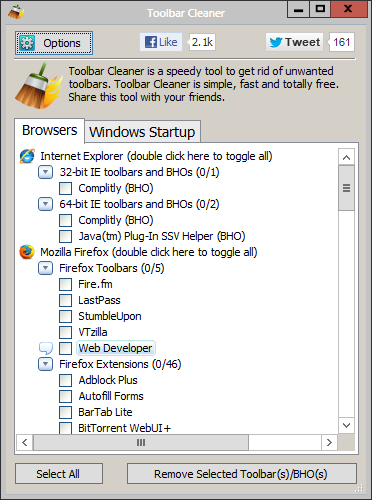

Make sure you also check the Windows Startup tab just to the right of the Browsers tab as its another opportunity to find and remove BHOs and other toolbars or browser attachments.
The Options button offers features like removing confirmation messages or the information popup. If you run across an entry in the list that you’re unsure of, do a Google search to find out more about it.
Toolbar Cleaner will work on Windows 8 Pro, Windows 7, Windows Vista and XP. Download Toolbar Cleaner from here.
The Options button offers features like removing confirmation messages or the information popup. If you run across an entry in the list that you’re unsure of, do a Google search to find out more about it.
Toolbar Cleaner will work on Windows 8 Pro, Windows 7, Windows Vista and XP. Download Toolbar Cleaner from here.
Subscribe to:
Posts (Atom)